

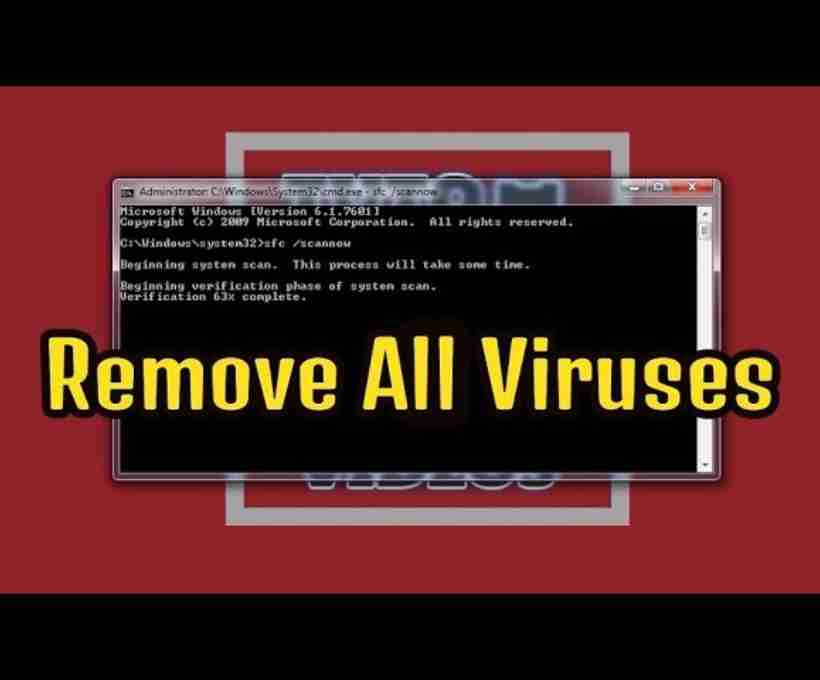
Computer viruses are the digital world’s most frustrating pests. They sneak in quietly, wreak havoc, and often go unnoticed until they start slowing things down or stealing data. But what if I told you that you don’t always need heavy antivirus software to get rid of them? That’s right – you can use the Command Prompt (CMD), a built-in Windows utility, to find and eliminate malicious files. This guide will walk you through the complete process, in human-friendly language, without any fluff.
Why Use CMD to Remove Viruses?
Command Prompt allows you to interface with your system using text commands. It gives you a deep level of control, allowing you to bypass GUI limitations and interact directly with files, processes, and system settings. When you know what you’re looking for, CMD can be an incredibly powerful tool for virus removal – especially when malware disables your antivirus or hides in plain sight.
Method 1: Remove the Virus Using the del Command
This method helps you find suspicious files in your drive and remove them manually.
Step 1: Open the Command Prompt
- Click on the Start menu.
- Type
cmd, right-click on Command Prompt, and choose Run as Administrator.
Step 2: Navigate to the Infected Drive
- Let’s say your infected USB or external drive is labeled
E: - Type:
E:Press Enter.
Step 3: Reveal All Hidden, Read-only, and System Files
Viruses often disguise themselves by changing file attributes. To reveal them:
attrib -s -h -r /s /d *.*Explanation:
-sremoves system attribute.-hremoves hidden attribute.-rremoves read-only attribute./sprocesses files in all directories./dprocesses directories themselves.
Step 4: Identify and Delete the Suspicious Files
Now, type:
dirThis will list all files and folders. Look for anything like:
autorun.inf.exefiles with random names.vbs,.bat, or.scrfiles you don’t recognize
To delete:
del filename.extensionReplace filename.extension with the actual file name.
Method 2: Remove the Virus Using taskkill Command
This method is useful if the virus is running as an active process in your system.
Step 1: Open the Command Prompt as Administrator
Same as before.
Step 2: View All Running Processes
Type:
tasklistYou’ll get a list of all the currently running processes.
Step 3: Identify Suspicious Processes
Look for strange entries such as:
- Unfamiliar names
- Processes using a high amount of memory/CPU
- Repetitive or random file names (like
ab13f2.exe)
Step 4: Kill the Virus Process
To stop a process:
taskkill /F /IM processname.exeReplace processname.exe with the suspicious file’s name.
Method 3: Use CMD to Clean System Using .bat Script
You can automate the process using a batch script:
- Open Notepad.
- Paste the following code:
@echo off
attrib -s -h -r /s /d *.*
del /f /s /q *.vbs
del /f /s /q *.exe
del /f /s /q *.scr
del /f /s /q *.bat
pause- Save it as
cleanvirus.bat - Right-click on the file and choose Run as Administrator
Method 4: Use System File Checker to Repair Damage
Some viruses corrupt system files. Use the built-in checker:
- Open CMD as Administrator
- Type:
sfc /scannow- Let it run. It will repair any damaged or altered system files.
Method 5: Use chkdsk to Detect Hidden Malware in Drives
Sometimes, viruses create bad sectors or hide inside the file system. You can detect and fix these using:
chkdsk E: /f /r /xExplanation:
E:is the infected drive/ffixes errors/rlocates bad sectors/xforces the drive to dismount before checking
Tips for Identifying Suspicious Files
Here’s what to look out for:
- Files with extensions like
.vbs,.bat,.exe,.scryou didn’t create - Files named similarly to real apps (e.g.,
chromes.exeinstead ofchrome.exe) autorun.inffiles in removable drives- Files with long, random alphanumeric names
Preventive Measures After Cleaning
- Don’t disable your antivirus permanently: Only disable it temporarily if needed for CMD operations.
- Always scan USB drives before opening them.
- Turn off autorun for USBs in Windows settings.
- Update Windows regularly to close security loopholes.
- Use strong passwords and avoid downloading unknown files.
- Backup data regularly to an external or cloud drive.
Final Thoughts
Using CMD to remove viruses gives you control and insight into what exactly is happening on your system. While it’s not as pretty or user-friendly as some third-party antivirus software, it’s powerful, lightweight, and doesn’t require an internet connection. With a bit of attention to detail and cautious examination of processes and files, you can remove even stubborn malware using just your keyboard and some savvy commands.
Just remember: this isn’t a one-size-fits-all solution. Some viruses are highly advanced and require a more robust response. But for common infections, this CMD-based approach can be surprisingly effective.
Stay safe, stay aware, and keep learning!




 English