

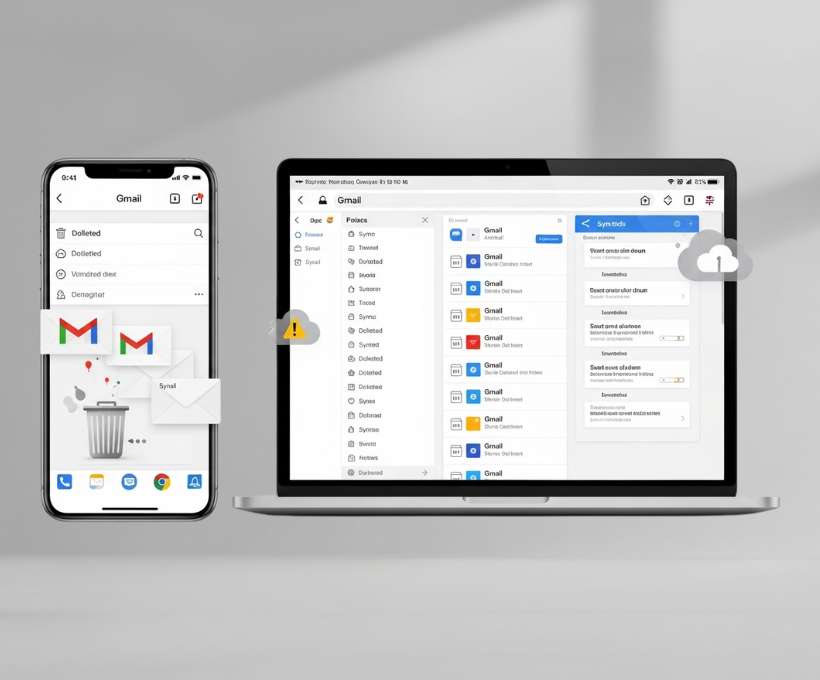
If you have ever deleted an email on your phone—only to find it still sitting comfortably in your Gmail inbox on your computer—you are not alone.
This is one of the most common Gmail frustrations.
At first glance, it feels like a sync issue. Something must be “broken,” right?
In reality, Gmail is doing exactly what it was designed to do. The problem lies in how Gmail manages email deletion across devices, apps, and settings—and how little most users understand about what “delete” actually means inside Gmail.
This article breaks everything down in plain language.
By the end, you will understand why emails disappear on your phone but remain on your computer, how to fix the issue permanently, and how to avoid losing important emails in the process.
How Gmail Manages Email Deletion
To understand the problem, you first need to understand how Gmail thinks about email.
Gmail is not a traditional folder-based email system.
Even though it looks like folders—Inbox, Trash, Spam, Promotions—Gmail actually uses labels behind the scenes.
This distinction matters more than most people realize.
Gmail Doesn’t “Move” Emails the Way You Think
In many email systems, deleting an email means moving it from one folder to another.
In Gmail, deleting an email removes the Inbox label, then applies the Trash label.
That email still exists.
It is simply tagged differently.
Now here’s where things get tricky.
Different Devices Can Interpret “Delete” Differently
When you delete an email on:
- The Gmail mobile app
- Apple Mail on iPhone
- Samsung Email
- Outlook Mobile
Each app may interpret “delete” differently depending on its configuration.
Some apps:
- Archive instead of delete
- Remove the Inbox label only
- Hide the message locally
- Delay syncing with Gmail’s servers
So even though you think you deleted the email, Gmail may see it as archived—or not deleted at all.
Gmail Is Cloud-Based, Not Device-Based
Your phone does not own your email.
Your computer does not own your email.
Gmail lives in Google’s cloud.
If a deletion action does not properly sync back to Gmail’s servers, the change remains local, not global.
That is the root of the problem.
Why Deleting Gmail Email on Phone Fails
Now let’s talk about why this issue happens so often—especially on phones.
1. Your Phone Is Archiving, Not Deleting
This is the most common culprit.
On many phones, especially iPhones, the default Gmail behavior is Archive, not Delete.
When you swipe an email away, you think it’s gone.
In reality, Gmail has simply removed it from your Inbox and placed it into All Mail.
On your computer, the email is still there.
You just haven’t noticed because it’s no longer in the Inbox.
This creates the illusion that deletion “failed.”
2. Third-Party Mail Apps Override Gmail Logic
If you are using Apple Mail, Outlook, or another email client, Gmail does not always control how deletion works.
These apps may:
- Mark messages as read instead of deleted
- Remove messages locally
- Sync changes only when the app is reopened
- Use IMAP settings that differ from Gmail defaults
As a result, your phone believes the email is gone.
Gmail does not.
3. Sync Is Disabled or Delayed
Phones optimize battery life aggressively.
That means background syncing is often paused, delayed, or restricted.
If your phone deletes an email but does not sync immediately:
- The action may never reach Gmail
- The app may crash before syncing
- The network connection may fail silently
When you later open Gmail on your computer, the email reappears.
4. Multiple Accounts Create Confusion
Many users manage multiple Gmail accounts on one phone.
Sometimes:
- You delete an email from the wrong account
- The app switches accounts automatically
- The deletion happens locally but not server-side
This leads to inconsistent behavior across devices.
5. Offline Mode Masks Reality
If your phone deletes emails while offline, the deletion is queued.
If the sync fails later, Gmail never receives the command.
The phone thinks the email is gone.
The computer never got the memo.
How to Fix the Problem at the Source
The key to solving this issue permanently is not deleting emails harder.
It is fixing how deletion is interpreted and synced.
Step 1: Fix Gmail Swipe Settings on Your Phone
Open the Gmail app.
Go to:
- Settings
- Select your email account
- Tap “Swipe actions”
Change swipe behavior to:
- Delete instead of Archive
This ensures that when you swipe an email away, it is actually sent to Trash.
This one change alone solves the problem for many users.
Step 2: Check IMAP Settings in Gmail (Desktop)
On your computer:
- Open Gmail
- Go to Settings
- Click “See all settings”
- Navigate to the “Forwarding and POP/IMAP” tab
Ensure IMAP is enabled.
Then scroll down to IMAP actions and verify:
- When messages are deleted: “Move to Trash”
This tells Gmail how to interpret deletion commands coming from devices.
Step 3: Stop Mixing Email Apps
If you are serious about consistency, use one primary email app.
The Gmail app is optimized for Gmail.
Third-party apps introduce translation errors.
If you must use another app, confirm:
- Deletion behavior
- Sync frequency
- IMAP deletion rules
Consistency matters more than convenience.
Step 4: Force Sync After Deletion
After deleting emails on your phone:
- Pull down to refresh
- Wait for sync to complete
- Keep the app open for a few seconds
This ensures the deletion reaches Gmail’s servers.
Manual Method to Delete Gmail Email on Phone and Everywhere At Once
If you want to be absolutely sure an email disappears everywhere, you need to delete it from Gmail itself, not just your device.
The Most Reliable Method
- Open Gmail on your computer
- Locate the email
- Delete it
- Empty Trash (optional but recommended)
This guarantees:
- The email is removed from all devices
- The deletion propagates instantly
- No sync ambiguity exists
Mobile-Only Manual Method
If you must delete on your phone:
- Use the Gmail app (not a third-party app)
- Open the email
- Tap the trash icon (not swipe)
- Wait for sync confirmation
Avoid gestures if accuracy matters.
Gestures are convenient—but unreliable.
Why Manual Deletion Is Risky
Deleting emails manually may seem straightforward, but it carries hidden risks.
1. Accidental Permanent Loss
Once you empty Trash, recovery is nearly impossible.
Important emails can disappear forever due to:
- Mis-swipes
- Bulk deletions
- Filter errors
- Sync delays
2. Filters Can Delete More Than You Expect
Many users forget they have Gmail filters running.
Deleting one email manually may trigger:
- Auto-deletion rules
- Label changes
- Bulk actions
Suddenly, entire threads vanish.
3. Conversations Are Grouped
Gmail groups emails by conversation.
Deleting one message may delete:
- Replies
- Attachments
- Previous context
This can break records or workflows.
4. Legal and Compliance Risks
For business users, deleting emails may violate:
- Retention policies
- Audit requirements
- Compliance rules
Manual deletion without strategy is dangerous.
Smarter Approach Before You Delete Emails
Instead of aggressively deleting emails, consider smarter alternatives.
Use Labels Instead of Deleting
Labels let you:
- Organize without losing data
- Retrieve messages later
- Reduce inbox clutter safely
This preserves information while maintaining control.
Archive Strategically
Archiving removes inbox noise without destroying data.
It is ideal for:
- Receipts
- Confirmations
- Old conversations
- Reference material
Archive is reversible.
Delete is not.
Create Filters That Work for You
Use filters to:
- Auto-label newsletters
- Skip inbox for promotions
- Mark low-priority emails as read
This reduces clutter without risking loss.
Schedule Regular Inbox Reviews
Instead of reactive deletion:
- Review weekly
- Delete intentionally
- Archive thoughtfully
Inbox hygiene beats panic cleanup.
Final Thoughts
If Gmail emails delete on your phone but remain on your computer, it is not a bug.
It is a misunderstanding between:
- Apps
- Labels
- Sync rules
- User expectations
Gmail is powerful, but it assumes you understand how it works.
Most users don’t—and that is not their fault.
Once you align:
- Swipe settings
- IMAP rules
- App consistency
- Sync behavior
The problem disappears.
The goal is not just deleting emails.
The goal is controlling your information without losing it.
Smart email management beats aggressive cleanup every time.
Frequently Asked Questions
Why do deleted Gmail emails come back?
Because they were archived, not deleted, or the deletion did not sync to Gmail’s servers.
Is deleting on mobile less reliable?
Yes. Mobile apps introduce sync delays, battery restrictions, and gesture ambiguity.
Does emptying Trash delete emails everywhere?
Yes. Once Trash is emptied, the email is permanently removed from all devices.
Should I stop using third-party email apps?
If consistency matters, yes. The Gmail app offers the most reliable behavior.
Can Gmail recover permanently deleted emails?
Usually no. Recovery is rare and time-limited.




 English